

How to install bitbox and activate module
BitBox is a professional ECU reading and writing software solution used by tuning workshops for ECU remapping, ECU programming and module-based vehicle support. For workshops in Dubai, Sharjah, Abu Dhabi and across the UAE, proper setup is important because BitBox depends on the correct security key driver, software version, registered account, module activation and J2534 interface setup.
This guide explains the full process in a clean, practical way. You can also replace the demo image blocks below with real screenshots later from your own BitBox installation process.
Before You Start
Use a stable Windows 10/11 laptop dedicated for ECU tuning work.
The BitBox security key must be connected and detected by the software.
Required for registration, license synchronization and module activation.
Install the correct driver for your J2534 adapter before ECU communication.
How to Install BitBox
Follow the correct installation order to avoid setup errors. This section includes demo image placeholders so you can replace them later with real BitBox screenshots inside WordPress.
Download the latest BitBox installer from the official BitBox installation page. Always use the newest available version to get updated ECU support and bug fixes.
Before opening BitBox, install the driver for the security key/dongle . This allows Windows and BitBox to detect the license key correctly.
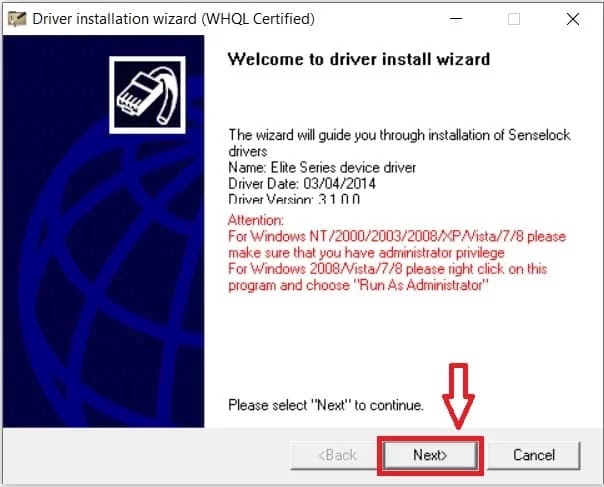
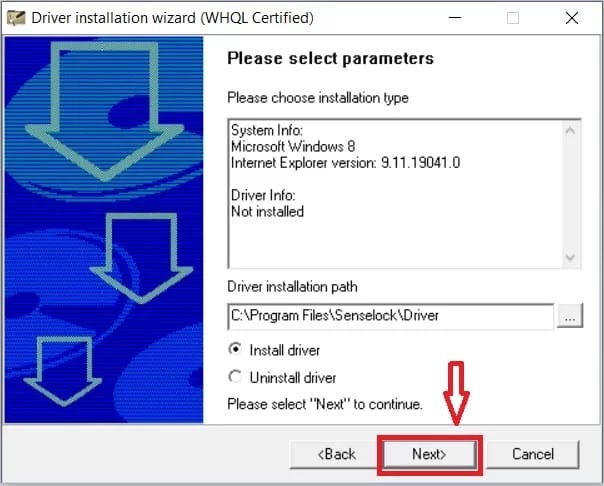
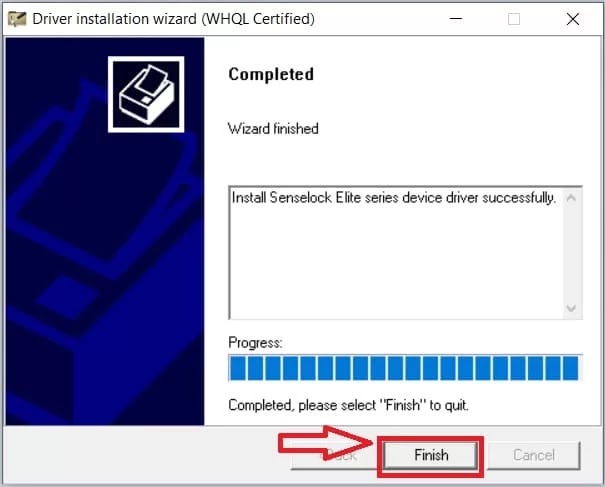
Run the BitBox installer as Administrator and complete the setup. Use the default installation folder unless your workshop has a dedicated software directory.
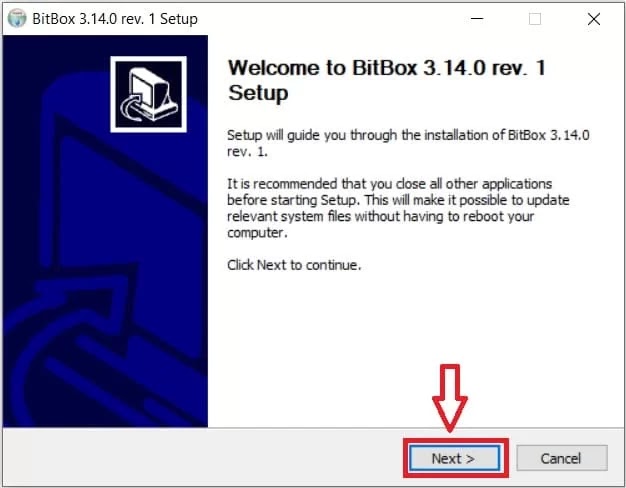
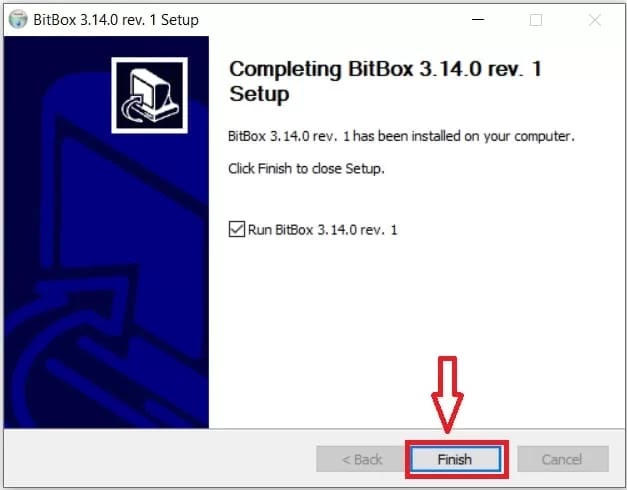
Insert the BitBox security key/dongle into the laptop. Wait for Windows to recognize it before launching BitBox.
Launch BitBox. If it is your first time, create/register your account using a valid email address. Use the same email when requesting module activation.
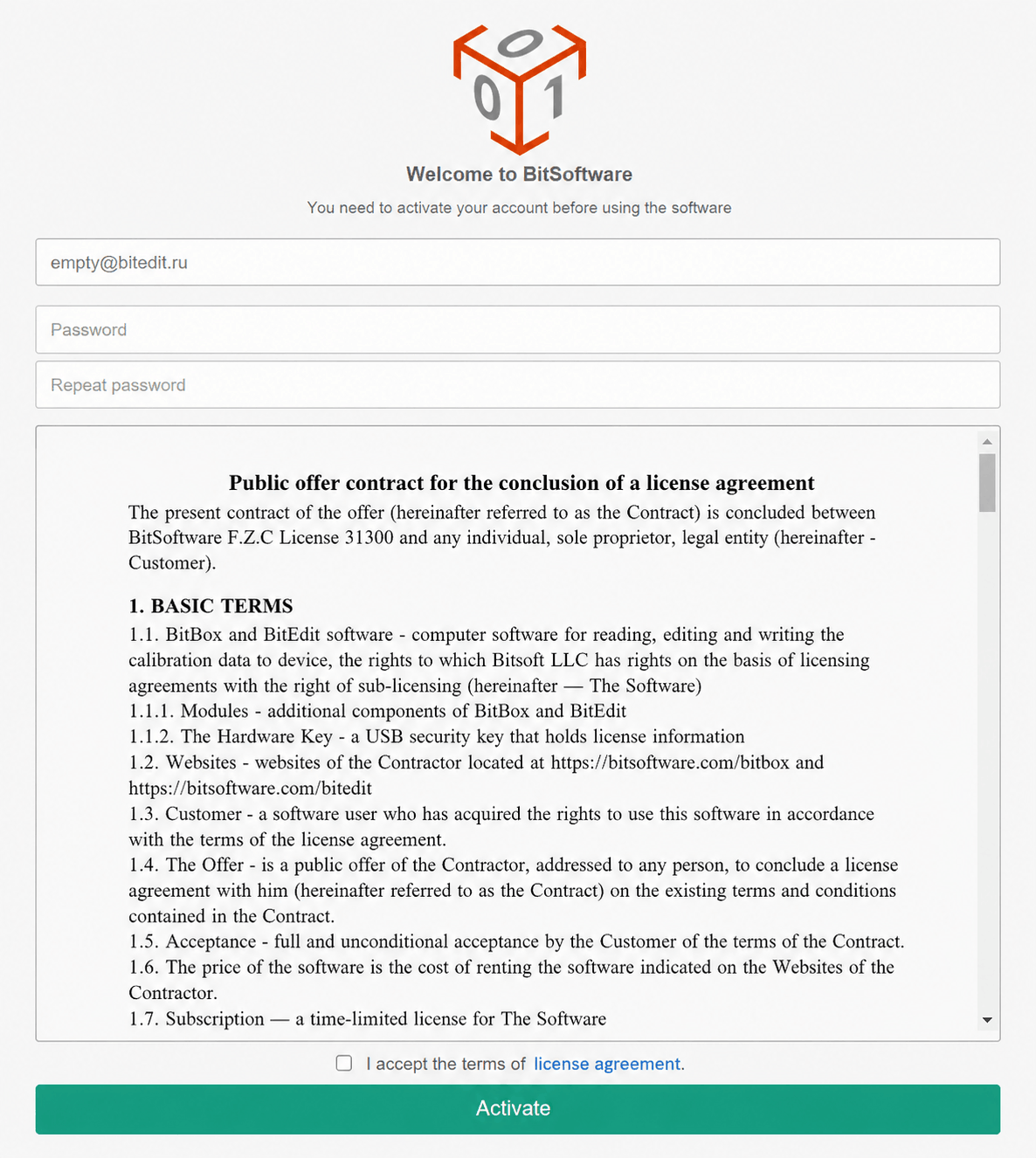
How to Activate BitBox Modules
After installation, your purchased modules need to be activated to your BitBox key/account. This is the part UAE customers should double-check carefully before sending details to the supplier.
Once the dongle is detected, BitBox will show the security key information inside the software/log area. Copy the key serial number exactly.
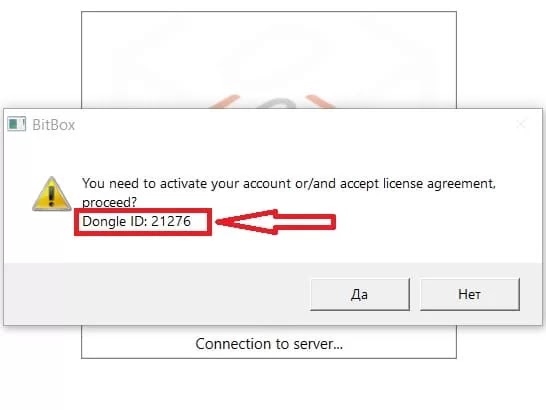
Send your security key serial number and registered email address to your supplier, such as AutoMax Tools. Purchased modules will be activated to that key/account combination.
After activation, restart BitBox with internet connected. The activated modules should appear inside the software automatically after synchronization.
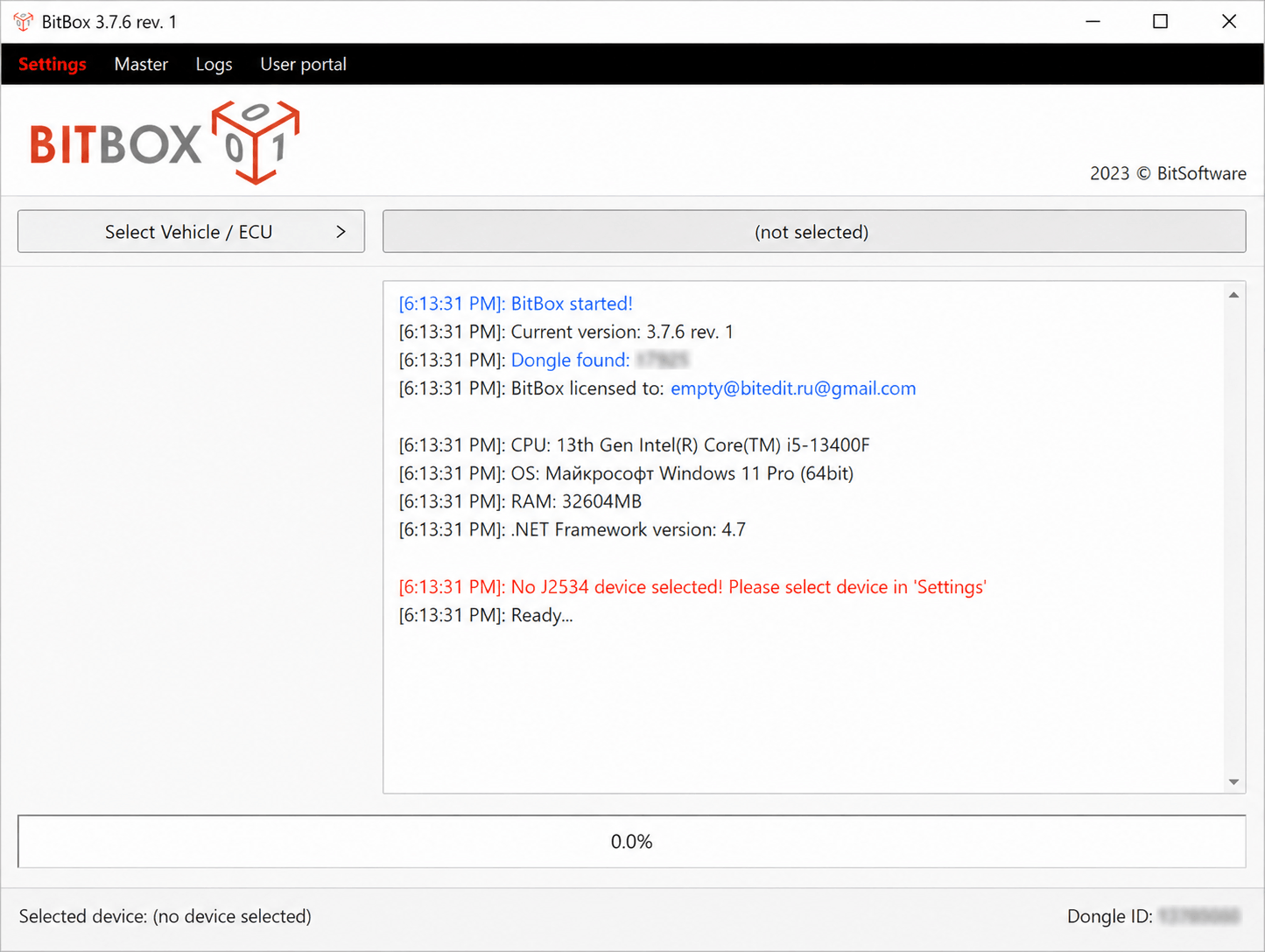
Before connecting to a car, confirm that the correct Toyota, BMW, Mercedes, Nissan or other purchased module is visible. This prevents wasting time during customer jobs.
https://drive.google.com/file/d/1ks2sjQPmyQ3-EHnIa3ELTm7Yzo6opY2K/view?usp=sharing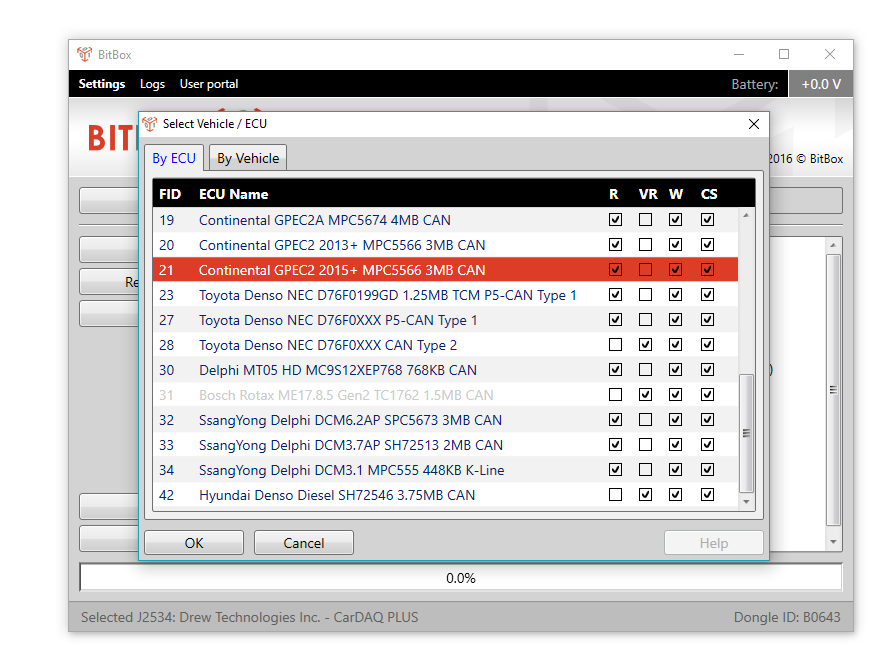
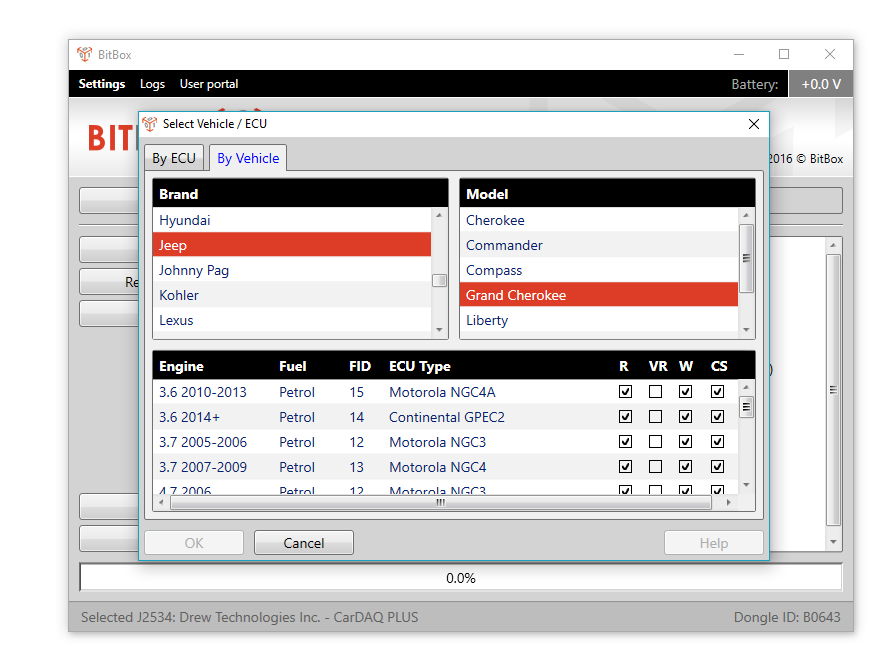
Dubai & Sharjah Workshop Setup Tips
For tuning workshops in Dubai, Sharjah and Abu Dhabi, the best practice is to use one dedicated tuning laptop and avoid moving the same setup across many computers unless necessary.
| Setup Item | Recommended Practice |
|---|---|
| Laptop | Use Windows 10/11 with reliable USB ports, stable charging and no unnecessary software running in the background. |
| Internet | Use stable WiFi or LAN for registration, account login and license synchronization. |
| Antivirus | If the driver or installer is blocked, temporarily whitelist the BitBox folder and re-enable protection after installation. |
| Customer Jobs | Always save the original ECU file before writing any modified file. |
| Bench Work | Use a stable power supply to avoid interrupted ECU reading or writing. |
BitBox reads and writes ECU files. If your workshop wants to edit calibration maps such as boost, fuel quantity, torque limiters, rail pressure, DPF/EGR maps or speed limiters, you may also need BitEdit or another professional ECU calibration editor.
Common BitBox Installation Problems & Fixes
BitBox does not detect the dongle
Install or reinstall the security key driver, try another USB port and launch BitBox as Administrator.
Modules are not visible after purchase
Check your internet connection, confirm that the correct registered email and key serial number were sent to the supplier, then restart the software and allow it to sync.
No ECU communication
This is usually not a module activation issue. Check the J2534 driver, adapter selection inside BitBox, OBD/bench cable connection and vehicle battery voltage.
Installation blocked by Windows or antivirus
Run the installer as Administrator and temporarily whitelist the BitBox installation folder if needed. Re-enable security protection after installation.
Frequently Asked Questions
Buy BitBox & Activate Modules in UAE
If you are running a tuning workshop in Dubai, Sharjah, Abu Dhabi or anywhere in the UAE, AutoMax Tools can help you choose the correct BitBox modules for your vehicle coverage, including popular GCC vehicles such as Toyota Land Cruiser, Hilux, Nissan Patrol, BMW and Mercedes-Benz.



No Comments