
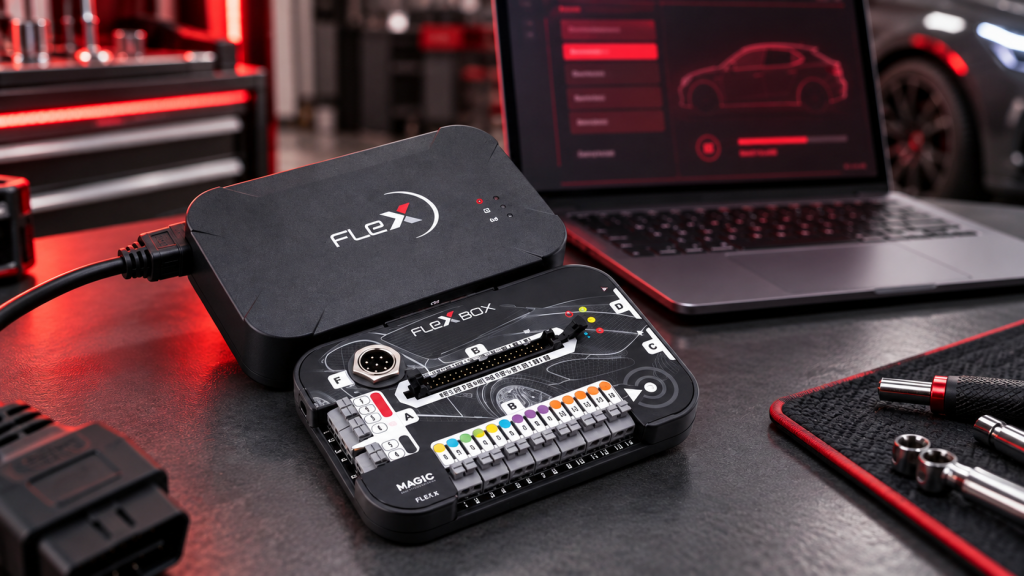
How to Activate Magic Motorsport FLEX Software
How to Activate Magic Motorsport FLEX Software
Register your tool, activate the correct software package, and prepare FLEX for its first professional job.


FLEX is activated through your Magic Motorsport HelpDesk account. Before beginning, make sure you have the tool serial number and the activation code or licence information supplied with your purchase.
Before you start
- A stable internet connection.
- Your FLEX tool serial number.
- The activation code or licence details provided by the seller.
- A Windows computer with the current FLEX software installed.
Activation steps
- Create or sign in to Magic Motorsport HelpDesk.
Open the official HelpDesk portal and log in. New users should create an account first and complete the email verification if requested. - Open the Products Activation section.
From the account menu, select the area for activating products or licences. - Enter your FLEX serial number and activation code.
Type the details exactly as supplied. Confirm the product shown on screen before completing the request. - Confirm the licence package.
Activate only the protocols and software package purchased for your tool—such as Master or Slave and the appropriate car, bike, truck, marine, or agricultural coverage. - Install or update FLEX software.
Download the latest available FLEX software from your account, then install it on your Windows PC. Run the installer as administrator if Windows asks for permission. - Connect FLEX and sign in.
Connect the original FLEX interface to the PC by USB, start the software, and sign in with the same HelpDesk account. Allow the program to complete its first synchronisation and any firmware update. - Check that activation is complete.
Open the product or licence page in the software and confirm that the expected protocols appear as active before connecting to a vehicle ECU or TCU.
Complete visual activation guide
Original full-screen walkthroughs for each stage of FLEX registration and activation.
If activation does not work
Check for typing errors and confirm that the code has not already been used.
Log out and back in, then update the software and allow it to synchronise online.
Use the original USB cable, try another USB port, and avoid unpowered hubs.
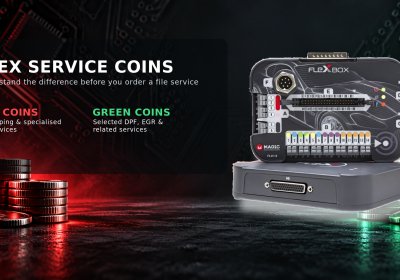
Red Coins vs Green Coins: what is the difference?
FLEX Helpdesk services use virtual coins. The exchange value is 1 Coin = €1. The colour tells you which service group the coin can be used for.
Routine workshop services
Used for services such as IMMO OFF, VAG MEDC17 cloning, and selected DPF/EGR-related services. Some services can also be purchased through StageX.
Advanced & tuning services
Used for STAGE1/MOD files, BMW ISN extraction, Renault ISK extraction, CVN fixes, and many heavy-duty services.
Can I use Green Coins for a Red Coin service?
No. The service type determines the coin required. Red coins can be converted to green coins, but not the other way around.
Are there any free services?
Yes. The current service list includes items marked Free, such as TPROT OFF, selected VAG MEDC17 fixes, BMW alignment and BMW cloning.
Does a quoted coin price always apply to every vehicle?
Not always. The official list notes that the final price may vary by vehicle type. Confirm the exact job with technical support before promising a customer a price.
Who performs MOD file services?
According to Magic Motorsport, MOD file services are performed by its specialised partner, Power Division.
FLEX Helpdesk services
Search by service name, vehicle type, or coin colour. Prices below are shown in coins.
| Service | Coins | Type |
|---|---|---|
| ADBLUE OFF | 200 | Red |
| ALIGNEMENT BMW MSD/MSV | Free | Free |
| CHK FIX | Free | Free |
| CLONE BMW MSD/MSV | Free | Free |
| CLONE VAG MEDC17 | 10 | Green |
| CLONE VAG PCR2.1 | 100 | Green |
| CVN FIX | 600 | Red |
| DPF + EGR OFF | 200 | Green |
| DPF OFF | 100 | Green |
| DTC OFF | 80 | Red |
| ECU HARDWARE CLONE | 120 | Red |
| EGR OFF | 100 | Green |
| FRF/ODX Decryptor | 30 | Green |
| HOT START | 100 | Green |
| IMMO MEDC17 | 100 | Green |
| IMMO OFF | 100 | Green |
| MOD | 150–200 | Red |
| SGO DECRYPTOR | 20 | Green |
| SPEED LIMITER | 80 | Red |
| TPROT OFF | Free | Free |
| VAG FLSH COUNTER RESET | 20 | Green |
| VAG MEDC17 EEPROM FIX | Free | Free |
| VAG MEDC17 IROM FIX | Free | Free |
| VAG SWIRL FLAPS OFF | 80 | Red |
| Heavy-duty vehicles — CAT OFF | 150 | Red |
| Heavy-duty vehicles — DPF OFF | 150 | Red |
| Heavy-duty vehicles — DTC OFF | 100 | Red |
| Heavy-duty vehicles — EGR OFF | 150 | Red |
| Heavy-duty vehicles — LAMBDA OFF | 100 | Red |
| Heavy-duty vehicles — MOD file | 200 | Red |
| Heavy-duty vehicles — SCR OFF | 250 | Red |
| Heavy-duty vehicles — SPEED LIMITER OFF | 100 | Red |
| Heavy-duty vehicles — SWIRL VALVE OFF | 150 | Red |
| Heavy-duty vehicles — THROTTLE | 100 | Red |
Service availability and coin prices can change according to vehicle type. Always confirm the latest requirement with Magic Motorsport technical support.
Sources: Magic Motorsport Coins FAQ and official Helpdesk Services List.
Need assistance?
Keep your serial number, order reference, and a screenshot of the activation message ready. This lets the supplier or Magic Motorsport support team verify the correct licence quickly.
Get the right FLEX solution for your workshop
Automax Tools helps workshops select the suitable FLEX hardware and software package, understand activation requirements, and start with confidence.
Choose the right coverage for your work.
Clear help with registration and setup.
Solutions selected for professional use.

No Comments